 This guide shows how to create a limited Trial edition of Windows, Mac or Linux software using the QuickLicense API. Alternatively, use AddLicense wrapping tool included with QuickLicense. Wrap a compiled application with your license without programming.
First, consider how you want the evaluation process to work. Your Trial edition can auto-activate on first launch for a specific computer or require user information before activation. User data can be entered through a dialog or web page before receiving an Activation Code by email, web page or instant activation. Trial software can expire after a specified number of minutes, hours, days or launches.
Step 1 - Configure Trial License
 Use QuickLicense to configure how the license works. Set checkboxes and make selections in the License dialog. Click the Make Ticket button to generate an encrypted Ticket file that defines the license and activation process.
 Step 2 - Test Your License
-
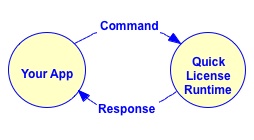
On application launch, send a command to the QuickLicense runtime. It implements the activation process and validates the license. To use the API approach, a few lines of code are added to your application.
The Command and Response strings contain semicolon separated data fields that tell your application to run normally or quit.
The SendMessage application included with QuickLicense can be used to experiment with a configured Ticket file.
 SendMessage sends a command to the QuickLicense runtime and displays the response. Use it to simulate your application's interaction with the runtime.
Step 3 - Implement Protected Application
-
You are now ready to call the QuickLicense runtime from your application.
 On Windows, QuickLicense runtime software is stored in a DLL file. Include the DLL and Ticket file with your application and call an external function to send a command. On Mac, the QuickLicense runtime is an application that can run with no menu commands or dock icon. The user sees an Activation dialog integrated within your application.
The QuickLicense runtime is also available as a static library that compiles into an Xcode application or plugins for Xojo and FileMaker applications.
QuickLicense comes with source code examples that show how to call the runtime from popular programming languages like C, C++, C#, Visual Basic, VB.Net, Objective-C, Delphi, RealBasic, Xojo, Java, FileMaker and other development environments.
 Step 4 - Deploy Trial Edition
-
QuickLicense includes the royalty-free runtime file that can be used for any number of applications or licenses. There are no fees, special installation or registry changes required. Just include the runtime and Ticket files with your application.
If your configured Ticket file presents an Activation dialog, that dialog can contain the URL of an activation page on your web site. An HTML form can collect the customer information and email it to you. Generate an Activation Code that is automatically emailed to the user.
Step 5 - Manage Customer Data
|
Collect customer data during the activation process. With an online activation process, that data is typically stored in your Safe Activation account on in an online server. When using a manual import process, you can import data into customer records in QuickLicense. Customer data can be searched, organized, exported or imported to a spreadsheet or database. Use this data to manage the evaluation, sales and support process. |